 lockmeout.online
Lock yourself out of accounts that eat your day
Social media is the biggest offender — built to keep you scrolling. Willpower rarely wins against an infinite feed, so the trick is to make signing in impossible rather than merely discouraged. With lockmeout.online you change the account’s password to a random one you never learn, then log out everywhere. It stays locked until your chosen time is up — no back door, nothing to negotiate with. The same trick works for any online account you want out of reach.
How it works, in three moves
1
Set a password you'll forget
lockmeout generates a random password. You set it on the account yourself — random characters nobody can memorise.
2
Focus, no cheating
Within minutes the password is gone from your memory, and you're logged out everywhere. The account is genuinely out of reach until the time you picked.
3
Read it back when time's up
The moment your lock opens, lockmeout reveals the password. Sign back in — and set a fresh password of your own choosing.
This works for any account — your computer, social media, video, shopping or news. Lock only the handful that eat your day and leave the rest signed in. Your device, email, and everything else keep working; you’re only locking away the accounts you chose.
The full walkthrough
Create a Password lock & get a random password
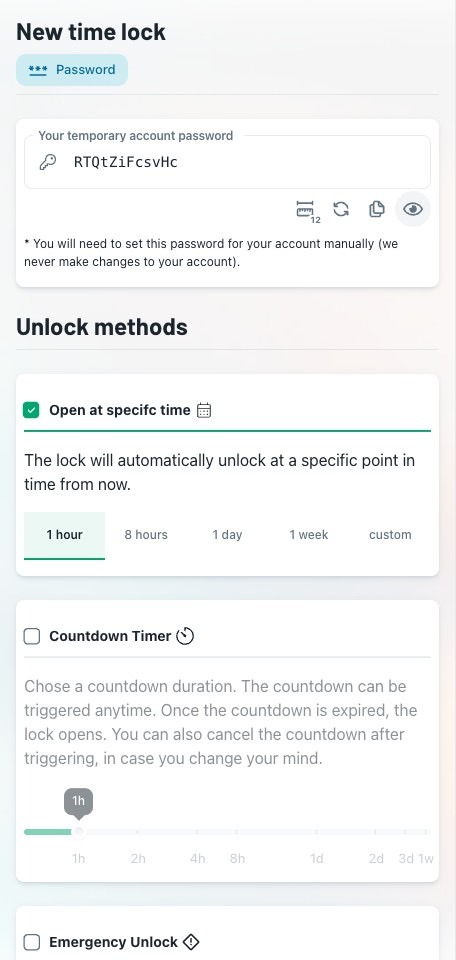
Open New Password lock. lockmeout generates a temporary account password — a fresh random string. Nudge the length up if the account demands it, and you’re set.
lockmeout never touches your account — it only stores the password and reveals it on schedule. You set and reset the password yourself.
Set the time & countdown options
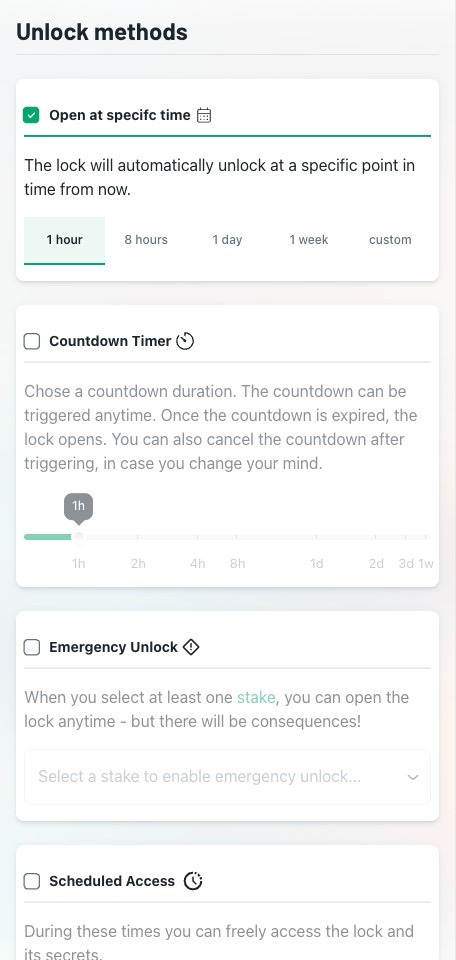
Under Unlock methods, choose how the lock is allowed to open — this decides when you get the password back. Pick at least one:
- Open at a specific time — the lock unlocks automatically at a fixed point from now.
- Countdown Timer — start a countdown on demand. Trigger it when you sit down to focus. You can cancel a running countdown if you change your mind.
Happy with your setup? Tap Create lock to save it.
Change the account's password to the generated one
In the account’s own settings, change its password. Copy the generated password from lockmeout and paste it in as the new one, then save. Pasting avoids typos.
Do this for one account at a time, and make sure the change is saved before moving on — a mistyped password you can’t read is as good as a locked account you can’t recover.
Sign out everywhere & remove saved logins
A new password means nothing if you’re still signed in. Close every open door:
- In the account’s security settings, use Log out of all devices (often called “active sessions” or “where you’re logged in”).
- Delete the saved password from your browser and phone keychain, so autofill can’t sign you back in.
- Remove any passkey or biometric login for the account, and — if you set it up — turn off “stay signed in”.
Close the lock, then read it back when time's up
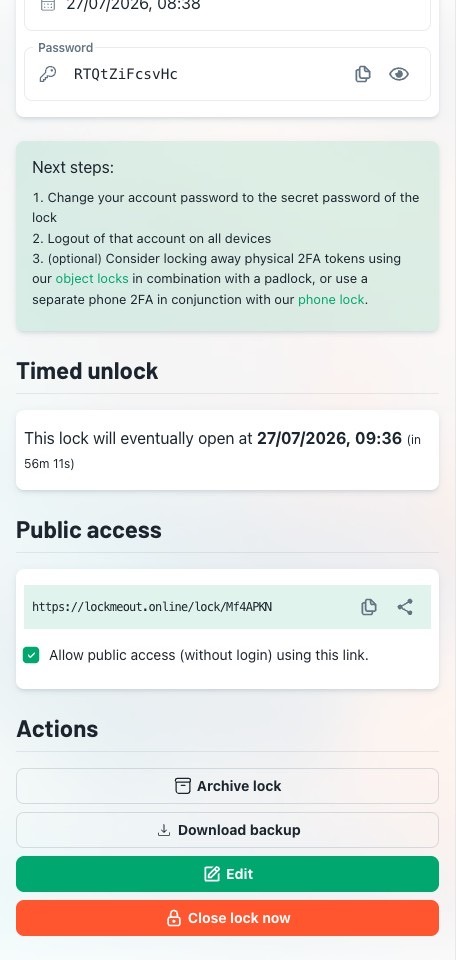
Back in lockmeout, tap Close lock now to seal the lock. The password is hidden and there’s no way to it until your chosen time is up.
Now go do the deep work you set this up for. Don’t try to memorise the password — within minutes those random characters are gone, and the account is genuinely out of reach.
When your time is up the lock opens and the password appears again — bookmark the lock link, or add an email notification, so you can find it. Sign back in and set a fresh password of your own.
Prefer to keep your password? Lock your 2FA instead
Lock away your one-time codes
Most accounts let you turn on two-factor authentication (2FA) — after your password, they ask for a rotating six-digit code from an authenticator app. lockmeout can be that authenticator, with a twist: an OTP lock only generates valid codes while it’s open. Seal it and, even though you still know your password, you can’t produce the second factor — so you can’t get in until your time is up. No password to change, nothing to reset afterward.
- Create an OTP lock and set your unlock time, just like the walkthrough above.
- In the account’s Settings → Password & security, turn on two-factor authentication and choose the authenticator app option.
- When it shows a QR code or a setup / secret key, paste that key into your lockmeout OTP lock instead of a normal authenticator. Confirm the six-digit code it shows to finish enabling 2FA.
- Close the lock. Sign out everywhere. Now signing back in needs a code only lockmeout can produce — and it won’t until the timer’s up.
Frequently asked questions
No. Unless you have set up an emergency unlock method, you have to wait until the timer or countdown expires before lockmeout reveals the password again.
You could — the account’s “forgot password” flow is always there. The point isn’t a technical prison; it’s enough friction that a mindless reflex to open the app fails. If password reset is too tempting, lock away the recovery channel too: use a phone lock on the device that receives the reset code, or move recovery to an email account you also lock.
lockmeout.online never touches your account. It only generates and stores the password and reveals it on schedule. You set the new password and reset it yourself. When the lock opens, set a fresh password of your own so the old one isn’t reused.
No — that’s just the most universal method. If the account supports two-factor authentication, you can instead enable 2FA and store its secret in an OTP lock. lockmeout only generates a valid one-time code while the lock is open, so you keep your password but still can’t sign in until your time is up — with nothing to reset afterward. Just be sure the 2FA secret lives only in lockmeout and your backup codes aren’t within reach.
Yes — the same trick works for any online account with a password: video and streaming, shopping, news, games, even a second email. Social media is simply the most common thing people want out of reach.
Create your Password lock now — it’s free and takes under a minute. Pick the one account that eats your day and put it out of reach.