 lockmeout.online
Turn your phone into a focus tool you can’t cheat
Willpower alone rarely wins against an infinite scroll. The trick is to make picking up your phone impossible rather than merely discouraged. With lockmeout.online you set your phone’s PIN to a random 16-digit number you never learn — kept safely in your lock and revealed only when your chosen time is up. No back door, no “just five minutes,” nothing to negotiate with. When the timer ends, the code lands on your lock screen and you’re back in.
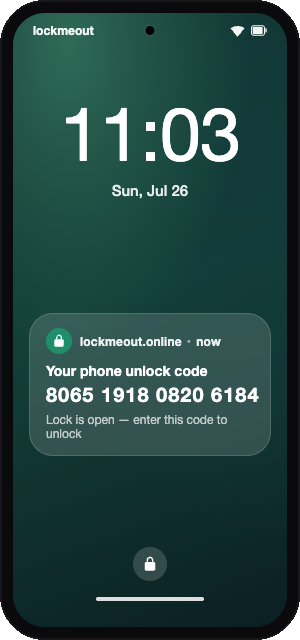
How it works, in three moves
1
Set a code you'll forget
lockmeout generates a random 16-digit unlock code. You set it as your phone's PIN — 16 random digits nobody can memorise.
2
Focus, no cheating
Within minutes the code is gone from your memory. The phone is genuinely locked until the time you picked, so distractions are off the table.
3
Read it back when time's up
The moment your lock opens, the code appears on your lock screen. Read it, unlock, and set your normal PIN back.
A locked phone is still a good phone. Your camera, incoming calls, outgoing calls via Voice Assistant and emergency calls all keep working — you’re only locking away the distractions, not bricking the device.
The full walkthrough
Create a Phone lock & get your 16-digit code
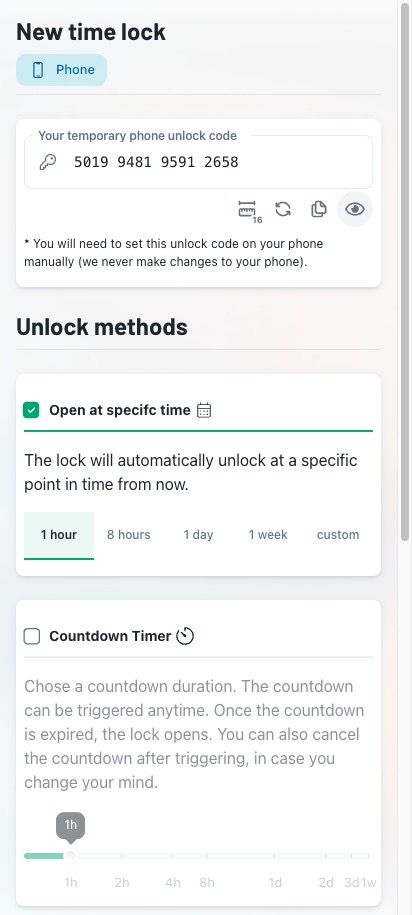
Open New time lock and set the lock type to Phone. lockmeout generates a temporary phone unlock code — a fresh 16-digit number.
lockmeout never changes anything on your phone — it only stores the code and reveals it on schedule. You set and clear the passcode yourself.
Set the time & countdown options
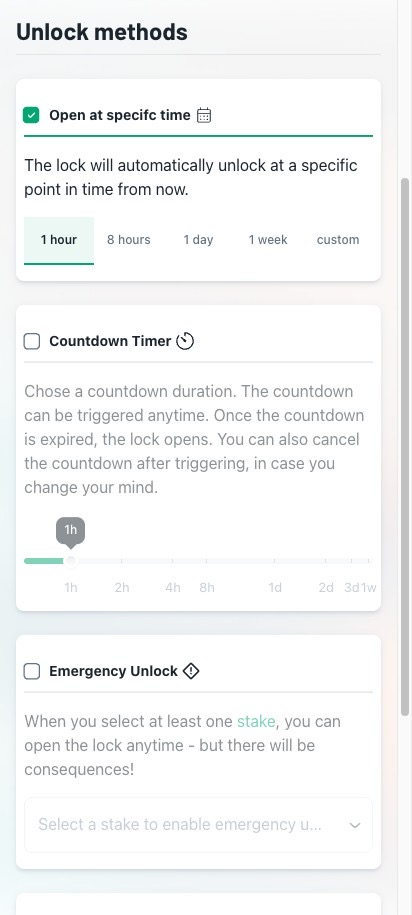
Under Unlock methods, choose how the lock is allowed to open — this decides when you get your code back. Pick at least one:
- Open at a specific time — the lock unlocks automatically at a fixed point from now.
- Countdown Timer — start a countdown on demand. Trigger it when you need to access your phone. You can cancel a running countdown if you change your mind.
Happy with your setup? Tap Create lock to save it.
Set the 16-digit code as your screen-lock PIN
With the generated code in front of you, change your screen-lock PIN to those 16 digits:
- Open
Settingsand go toSecurity & privacy→Device unlock→Screen lock. Enter your current PIN if asked. - Choose
PINas the lock type. - Type the full 16-digit code as your new PIN, then enter it a second time to confirm.
- If prompted about notifications on the lock screen, choose to show all content so your unlock code will be readable later.
The exact wording varies by manufacturer (Samsung, Pixel, Xiaomi…), but it’s always under Security → Screen lock. A PIN can be up to 16 digits, so the full code fits.
Double-check every digit — be careful not to make mistakes when entering the code.
Turn on push notifications
When the lock opens you’ll need to read your code without unlocking the phone — it may be your only device. lockmeout delivers it as a push notification that lands on your lock screen the instant your time is up.
Enable notifications now and test it before you rely on it — the Phone setup guide walks through it step by step.
Set your lock screen to show notification content (Settings → Notifications → Notifications on lock screen), so the code is readable while you’re locked out. You can also ask your voice assistant to read it aloud.
Close the lock and disable fingerprint unlock
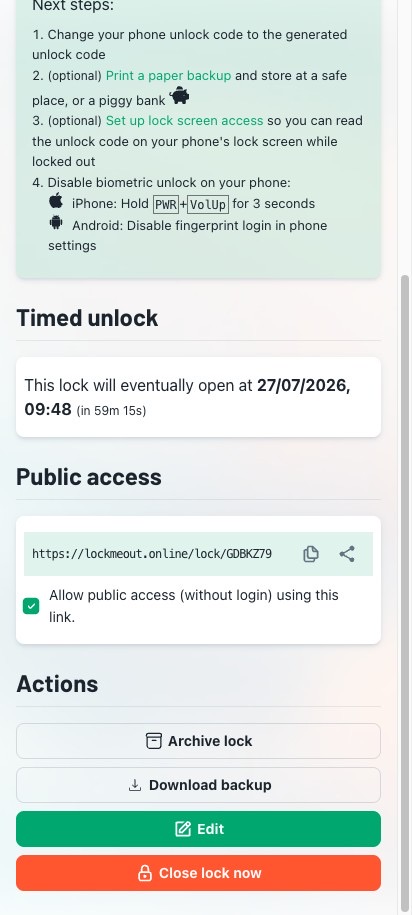
In Lockmeout, tap Close lock now to seal the lock. The code is hidden and there’s no way in until your lock opens.
Then remove every fingerprint and face unlock so you can’t bypass the PIN: open Settings → Security & privacy → Fingerprint & Face and delete them. From now on only the PIN gets you in — the one you’re about to forget.
The menu name varies by model — confirm biometric unlock is gone and the PIN is required before you continue.
Put the phone down and don’t try to memorise the digits — within minutes they’re gone.
Frequently asked questions
No. Unless you have set up an emergency unlock method, you have to wait until the timer or countdown expires to access the code.
Turn on lockmeout.online push notifications before you lock yourself out — see the Phone setup guide. When the lock opens, the code arrives straight on your lock screen, so you never have to unlock the phone to read it. You can also ask your voice assistant to read it aloud.
lockmeout.online never touches your phone. It only generates and stores the code and reveals it on schedule. You set and clear the PIN on the device yourself.
Type carefully and confirm every digit, because once you forget the code a typo is indistinguishable from not knowing it. Keep the code visible on another screen while you enter it, and test that you can read it back before you rely on the lock.
Create your Phone lock now — it’s free and takes under a minute. Runs right in your browser; install it to your home screen for push notifications.